How to create objectives and lesson content?
How to create Objectives?
- Go to the XR Platform.
Note
Make sure you have the Designer or Administrator role. You can change roles by clicking on them and switch to another one in the list.
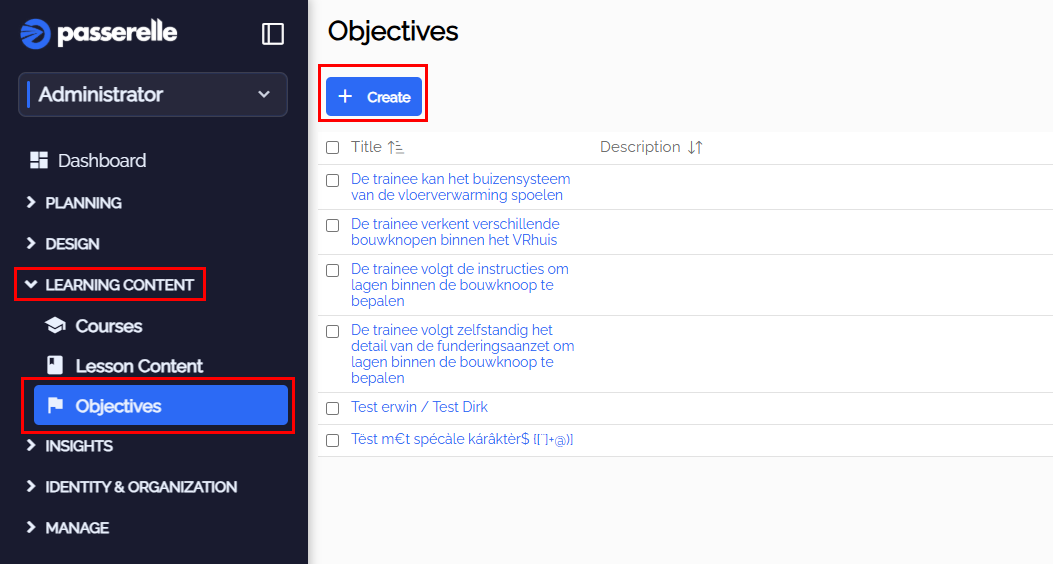
- Press Objectives and Create.

-
Choose a title for your objective.
-
You can also add a more detailed description.
-
Press create when you are ready.

- Your objective should now be in the list
How to create and manage Lesson Content
When you add a new application to the XR Platform, lesson content is automatically created. If the application is not showing up in XR Instructor you can check if the Lesson Content exists. You can adjust it as follows:
- Go to the XR Platform.
Note
Make sure you have the Designer or Administrator role. You can change roles by clicking on them and switch to another one in the list.
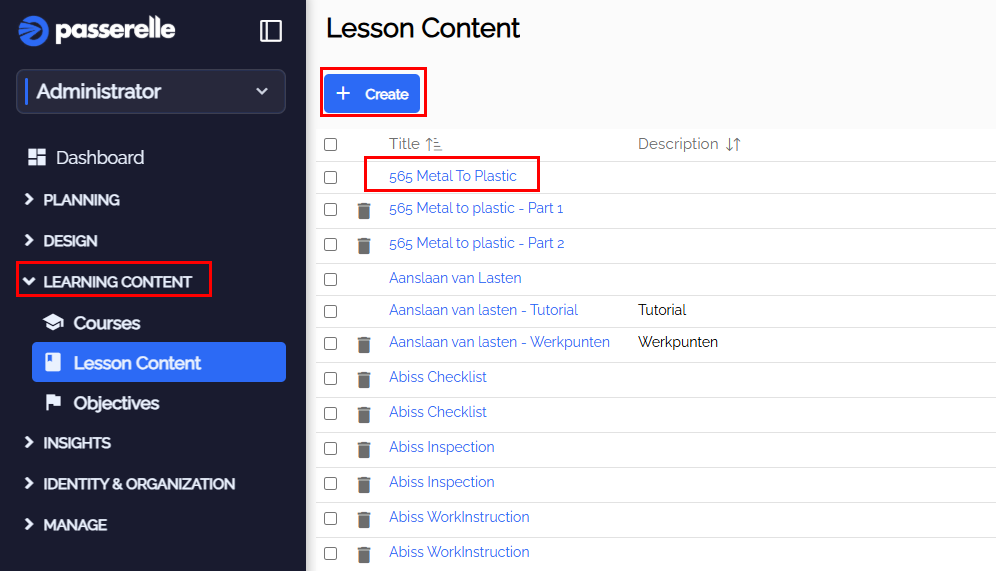
- Press Lesson Content and Create if you want to create new content or press an existing one to change it.

-
Choose a unique title for the lesson content.
-
Give a short and clear description. This will make XR Instructor easier for trainers when preparing and selecting content.
-
Add an application you want to link to the lesson content if this is new.
-
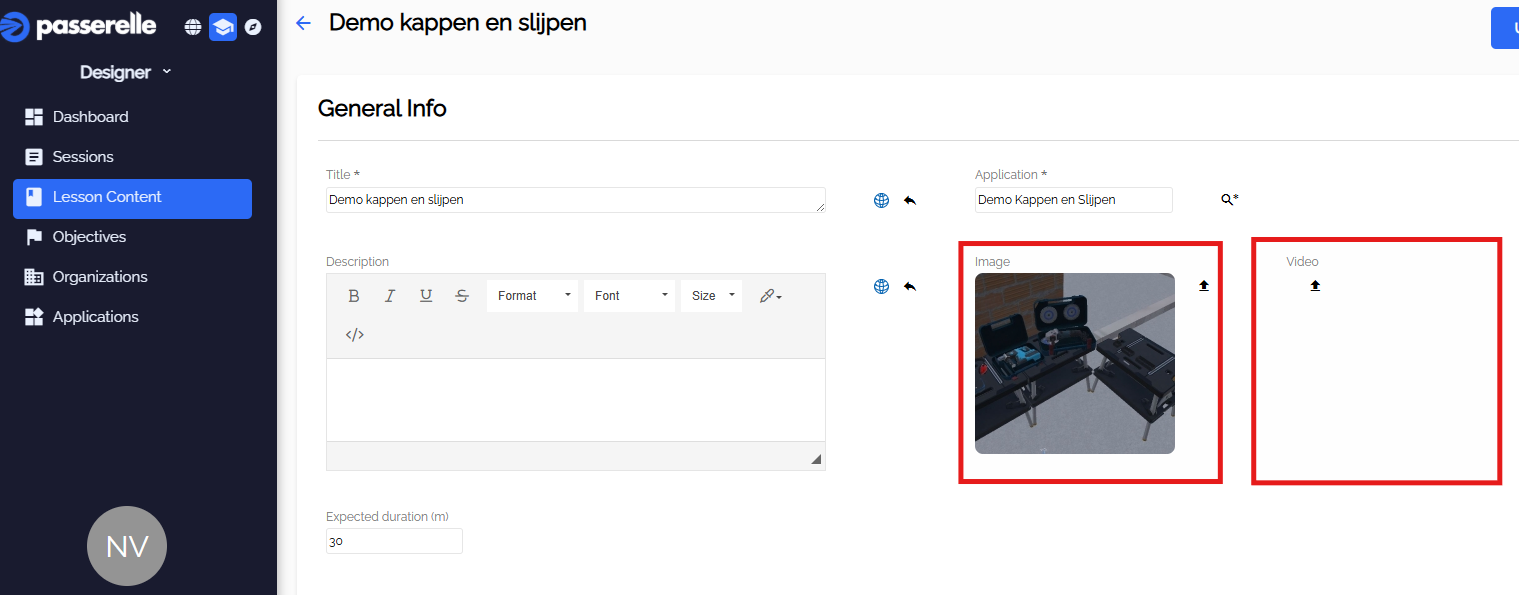
Add an image and playthrough of the lesson content. This will be visible in XR Instructor.
-
Add created objectives. This will make XR Instructor easier for trainers when preparing and selecting content.
-
Press Create or Update when you are ready.
Create lesson content from your designed VR Environments and XR Procedures
- If you want to use VR Environments or XR Procedures you designed in XR Instructor, you need to have lesson content. Normally it is automatically created by the platform.

- Go to Lesson Content and select the Player app for XR Procedures or Explore app for VR Environments.

- Select the Procedure or VR Environment. Make sure the XR Procedure is validated first if this feature is active on your platform.
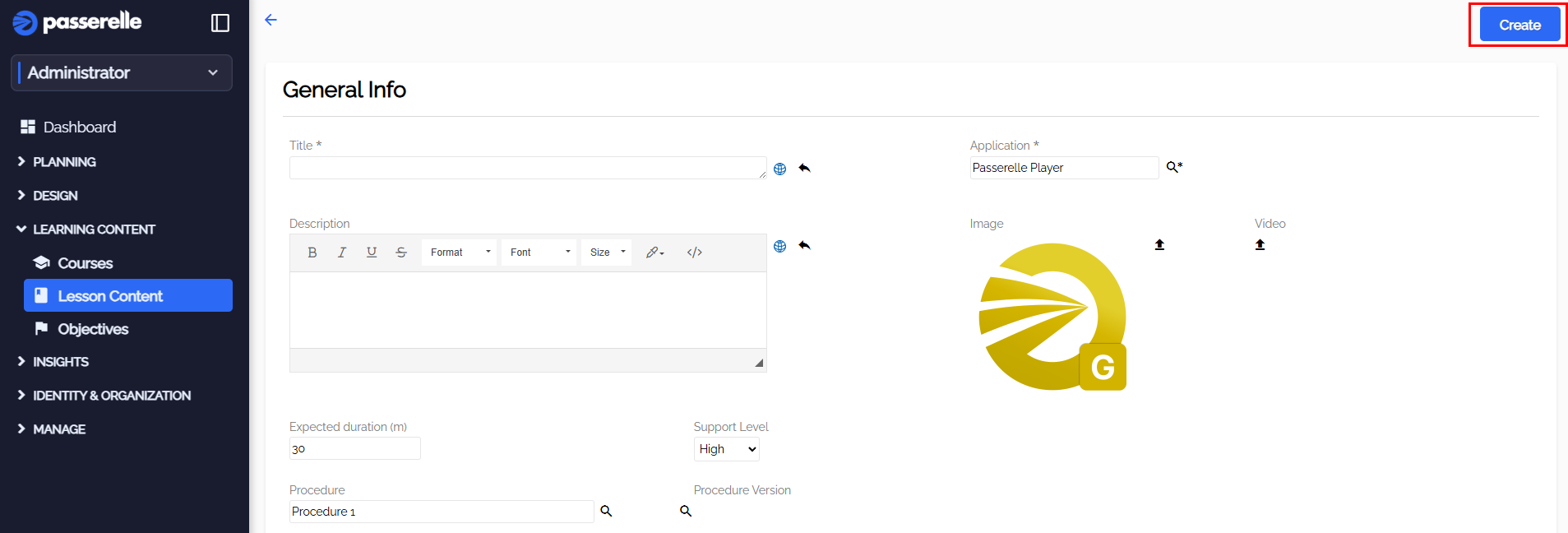
- Press Create when finished.